
Group, sort, filter, hide and pin columns in Smart Agent
Every Smart Agent listing tab has four table tools. Group rows by a column from its menu or by dragging the header to the top bar, sort by clicking a header, filter each column in one of 14 modes, and hide, pin or reorder columns from the Show/Hide columns panel.
What are the new list tools in Smart Agent?
In June 2023 Smart Agent added four tools to its listing tabs. They work on the data you already see in a list:
- Grouping arranges rows into groups of the same kind, for example all invoices for one customer.
- Sorting orders the whole list, or a group, by any column, in numeric or alphabetical order.
- Filtering keeps only the rows that match a keyword or a numeric comparison.
- Hide and pin removes columns you do not need and fixes the ones you use often.
The guide uses the Invoice List, but the tools apply to all listing tabs. Open the list first.
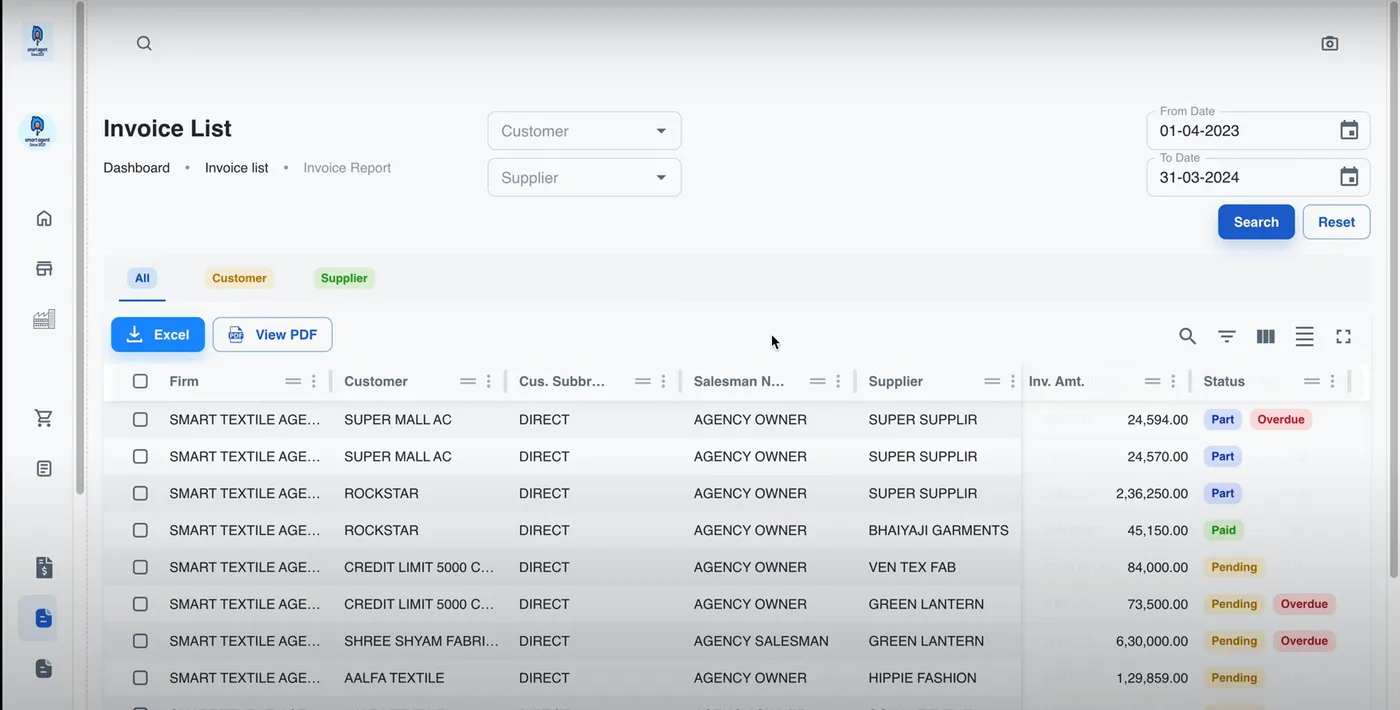
How do you group the data?
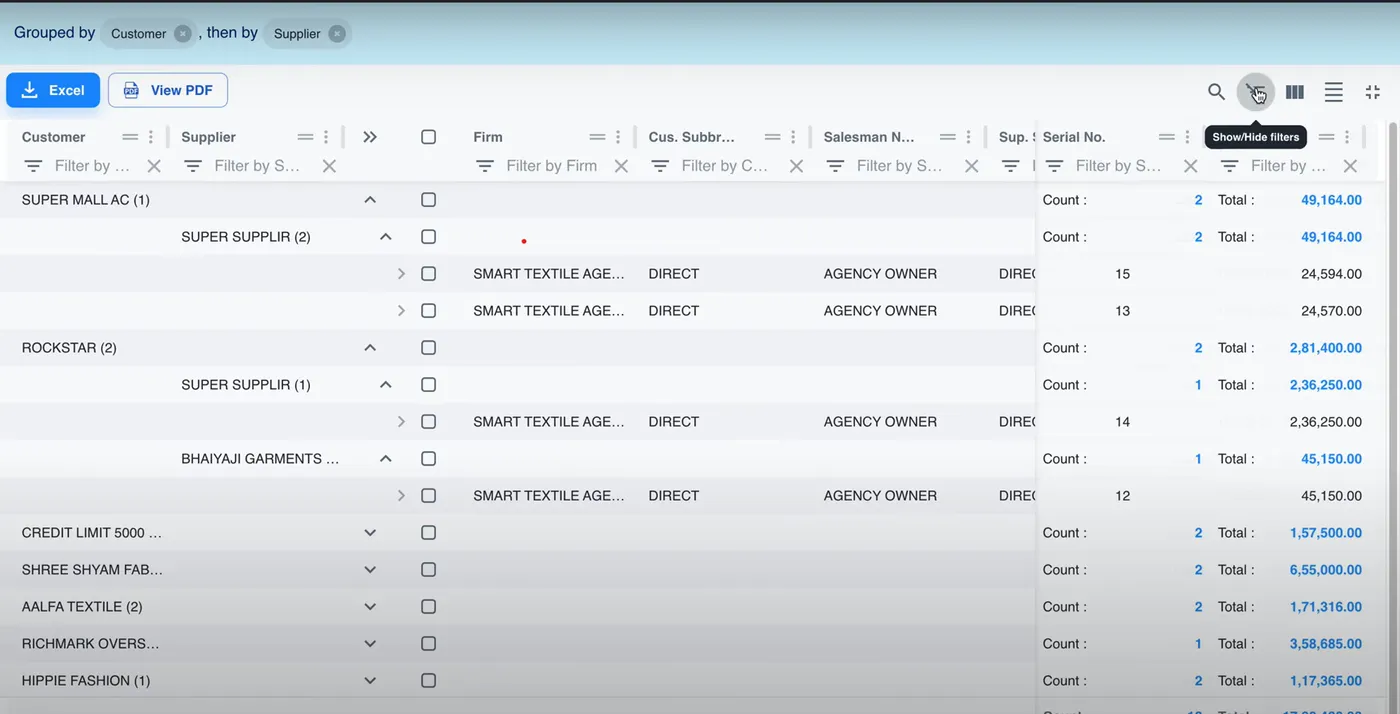
Grouping answers questions such as how many customers you deal with, or which suppliers sit under each customer. You can group as many times as you like, so a customer group can contain supplier groups.
There are two ways to group.
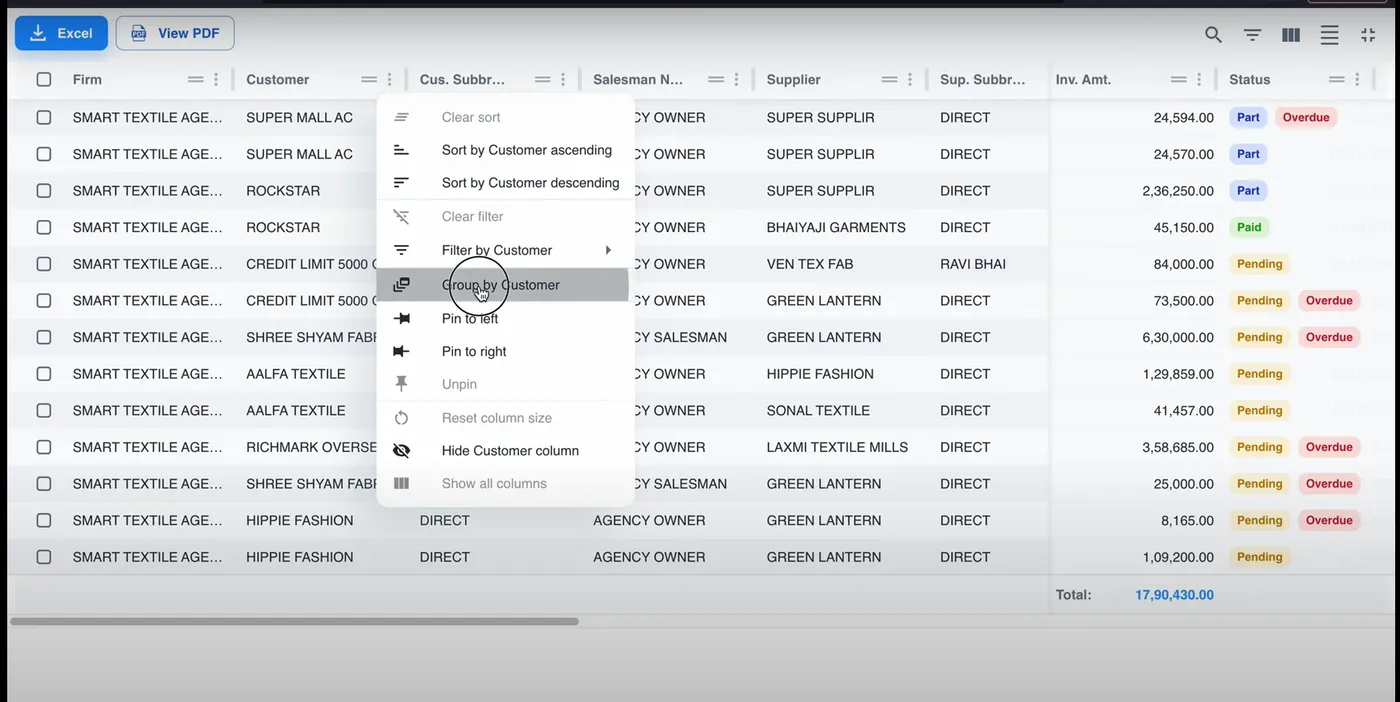
Option 1: from the column menu. Click the three dots in the column header. In the menu, click Group by Customer. The menu also offers sort ascending and descending, filter, pin to left or right, hide column and reset column size.
Option 2: drag the column. Hold a column header and drag it into the bar at the top of the table. In the example, the table was grouped by customer, then the Supplier header was dragged to the same bar to group by supplier inside each customer.
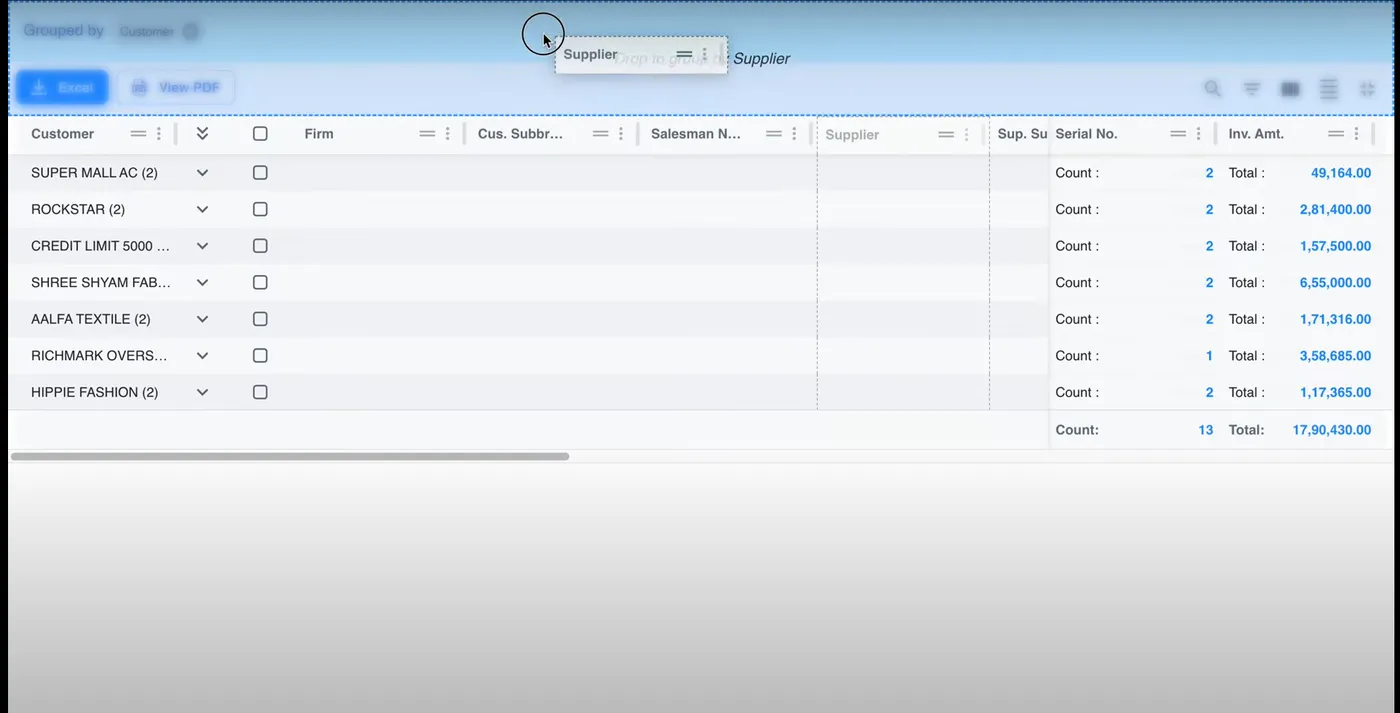
Each group row shows a count and a total, so a customer’s number of invoices and total amount are visible without opening the group.
How do you sort the data?
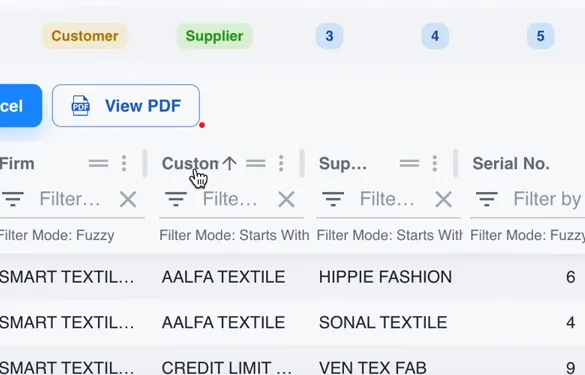
Click the header of the column you want to sort by. An arrow on the header shows the direction. One click sorts ascending and a second click sorts descending. Numbers sort by value and names sort alphabetically, so you can sort by customer name or by amount.
How do you filter the data?
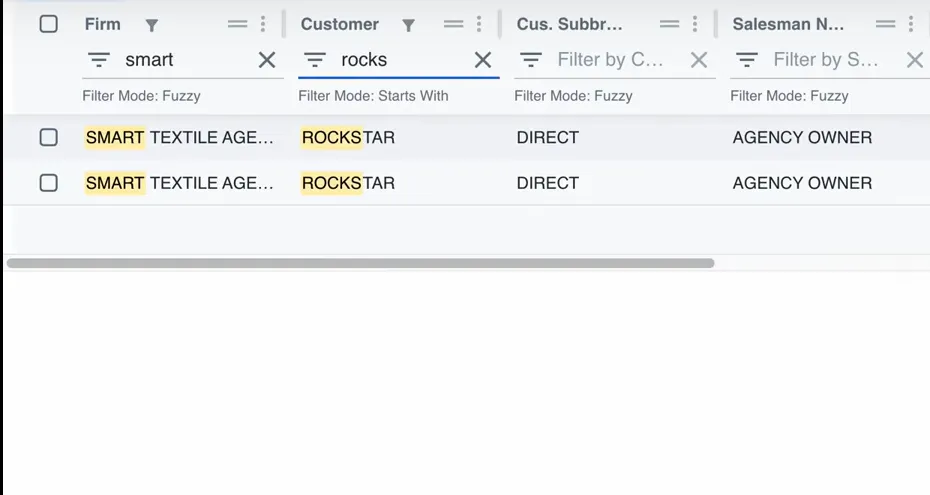
Click the filter button, the icon of three bars above the columns, labelled Show/Hide filters. A filter box appears under every column header. Type in a box to keep only the rows that match, and combine boxes to narrow further. In the example, “smart” in the Firm filter and “rocks” in the Customer filter left the two ROCKSTAR rows, with the matching letters highlighted.
What are the filter modes?
Each filter has a mode, shown under the box as “Filter Mode”. Text columns start in Fuzzy or Starts With mode. To change it, click the icon at the left of the filter box and pick one of 14 modes: Fuzzy, Contains, Starts With, Ends With, Equals, Not Equals, Between, Between Inclusive, Greater Than, Greater Than Or Equal To, Less Than, Less Than Or Equal To, Empty and Not Empty.
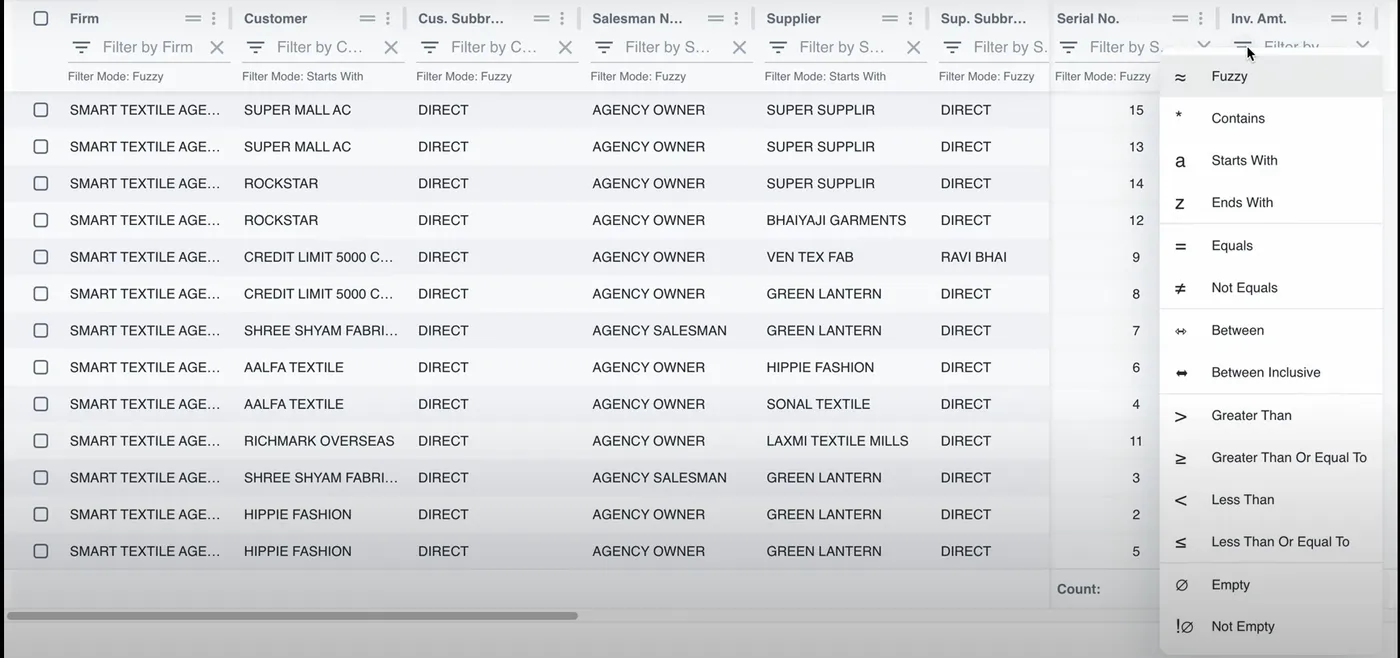
Number columns use the comparison modes. To find every invoice above 50,000, set the amount column to Greater Than and type 50000.
How do you hide and pin columns?
Hide the columns you do not need so the important data fits on the screen, and pin the ones you check most so they stay in view while you scroll.
Click the Show/Hide columns button, the icon of three vertical bars in the table toolbar.
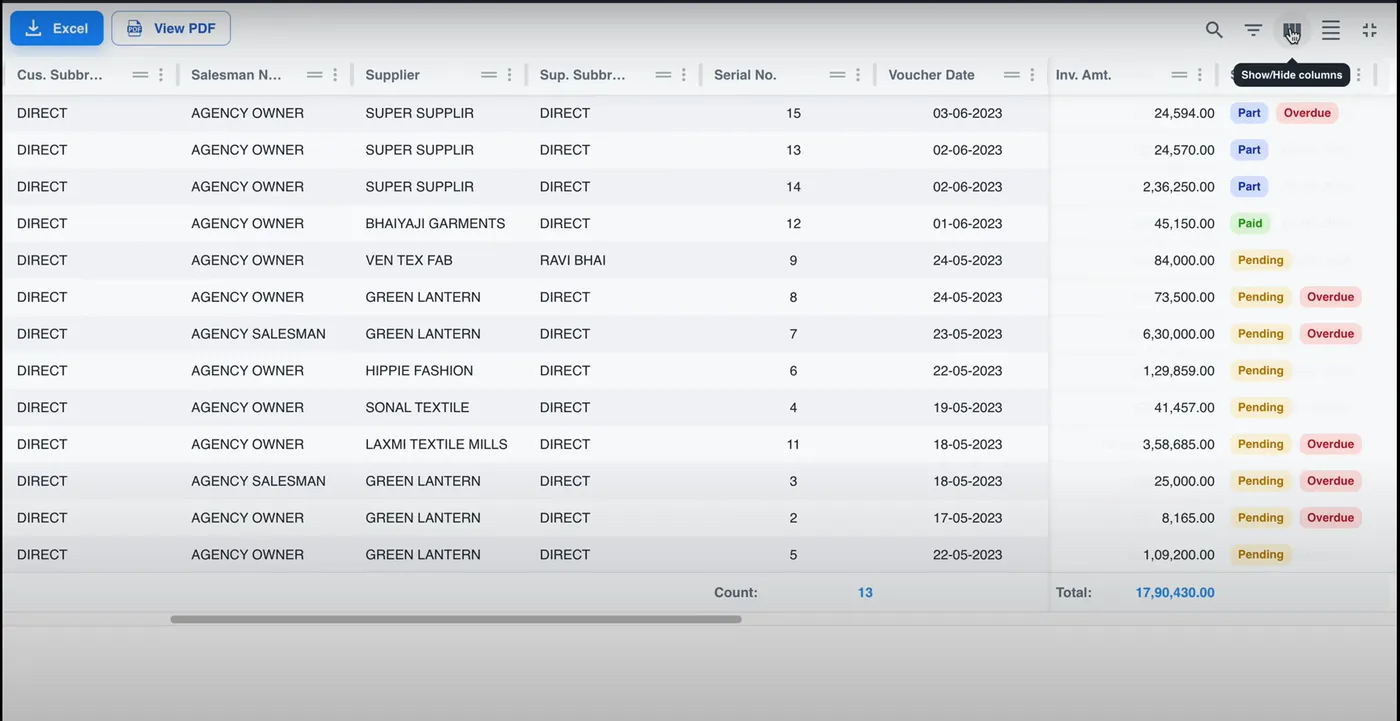
A panel opens with one row per column:
- A toggle hides or shows the column.
- A pin icon to the left pins the column to the left side of the table, and the pin icon to its right pins it to the right side.
- A handle drags the column to a new position.
- Hide All, Reset Order, Unpin All and Show All at the top undo or apply changes in one click.
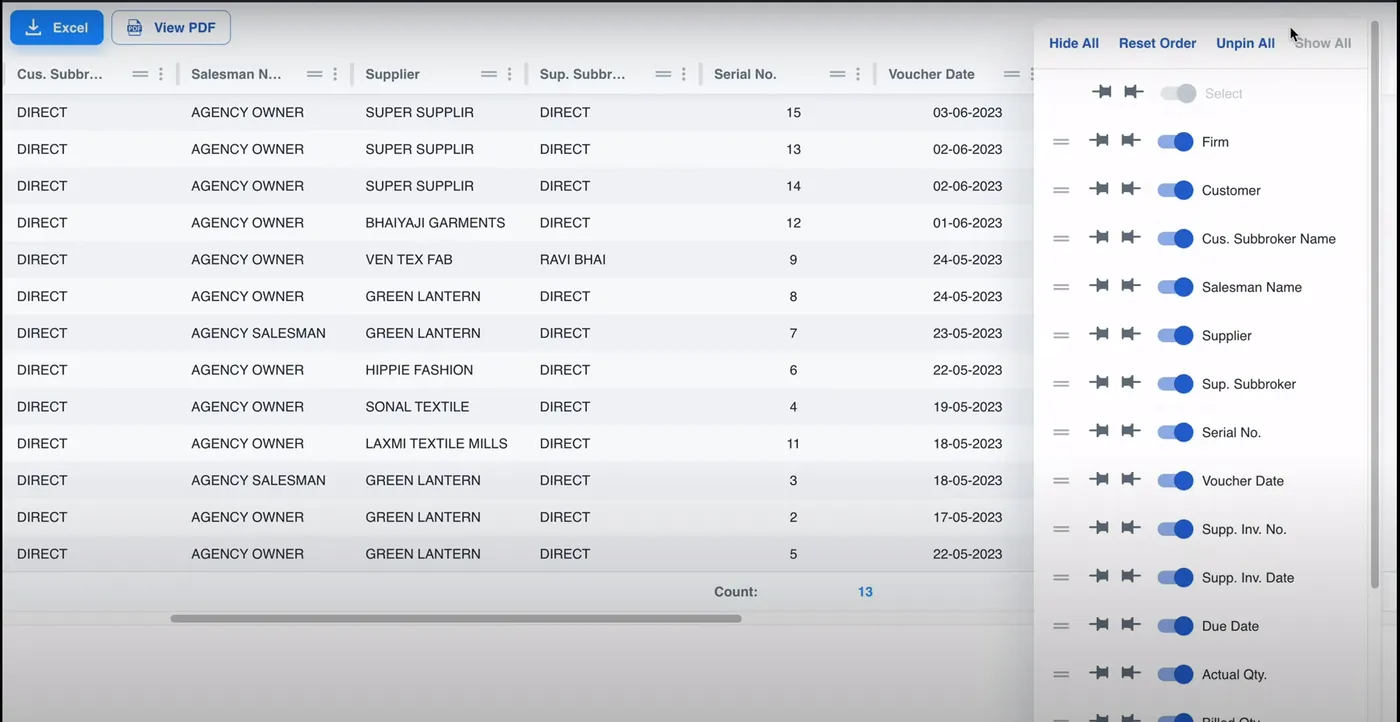
You can also pin, unpin or hide a single column from its three-dot menu.
Is there a video of these tools?
Yes. Watch the group, sort, filter, hide and pin video on YouTube for the full walkthrough.
Where do you go next?
To look up one voucher rather than shape a whole list, use the specific voucher search, or find an invoice by buyer, supplier or number. If the app is not on your device yet, install the Smart Agent app. The Smart Agent features page lists the rest of the app, and the Smart Agent pricing page shows what a seat costs.
Questions this raises
Which Smart Agent screens have grouping, sorting, filtering, hide and pin?
All listing tabs. The guide shows them on the Invoice List, and the same table tools are on the other lists.
How do I sort a column in Smart Agent?
Click the column header once to sort ascending and click it again to sort descending. An arrow on the header shows the direction.
Can I find invoices above a certain amount?
Yes. Open the filter mode menu for the amount column, choose Greater Than, and type the amount, for example 50000.
How do I undo hiding and pinning?
Open the Show/Hide columns panel and use Show All to bring back hidden columns, Unpin All to release pinned ones and Reset Order to restore the column order.