
Find an invoice in Smart Agent by buyer, supplier or number
Open Menu, then Invoice List, click the Search button at the top left, and type. Smart Agent searches four fields: buyer name, supplier name, voucher or serial number, and supplier invoice number, and narrows the list to the matching invoices.
How do you search for an invoice in Smart Agent?
The Invoice List grows by the day, so scrolling stops being practical. The search bar finds an invoice from any of four details you already have. Three steps open it and run the search.
Step 1: open the Invoice List
From the home screen, click Menu, then Invoice List under Invoices.
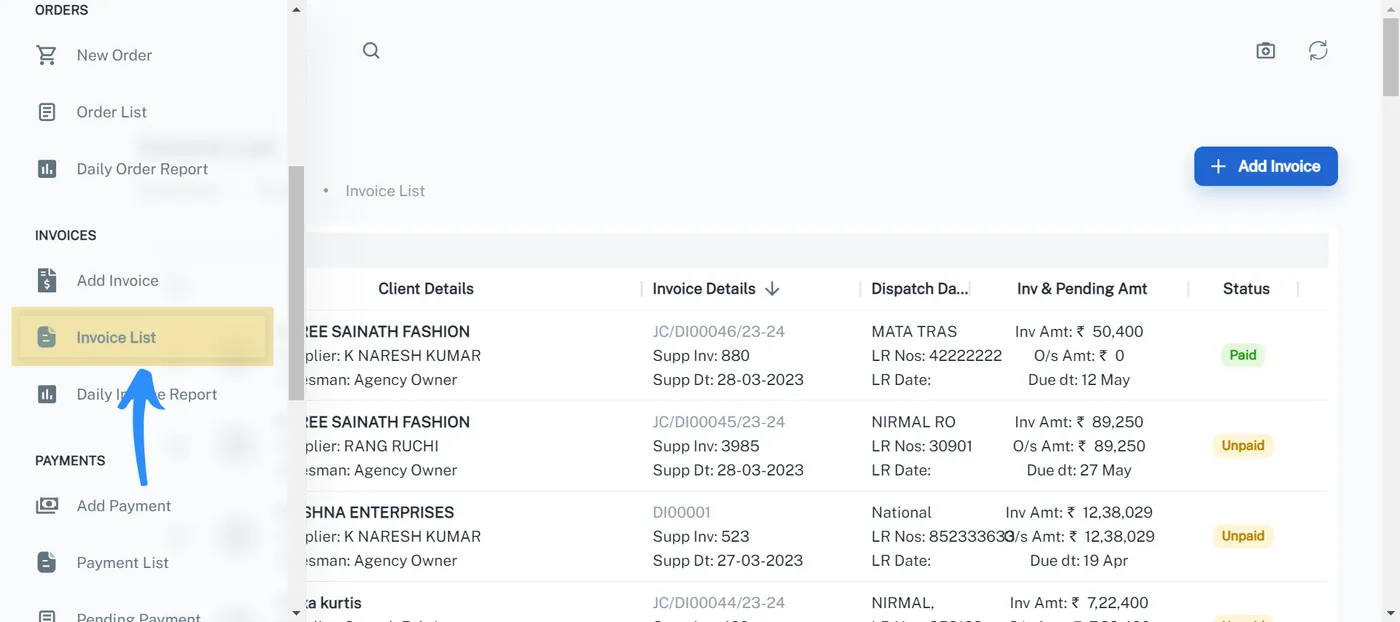
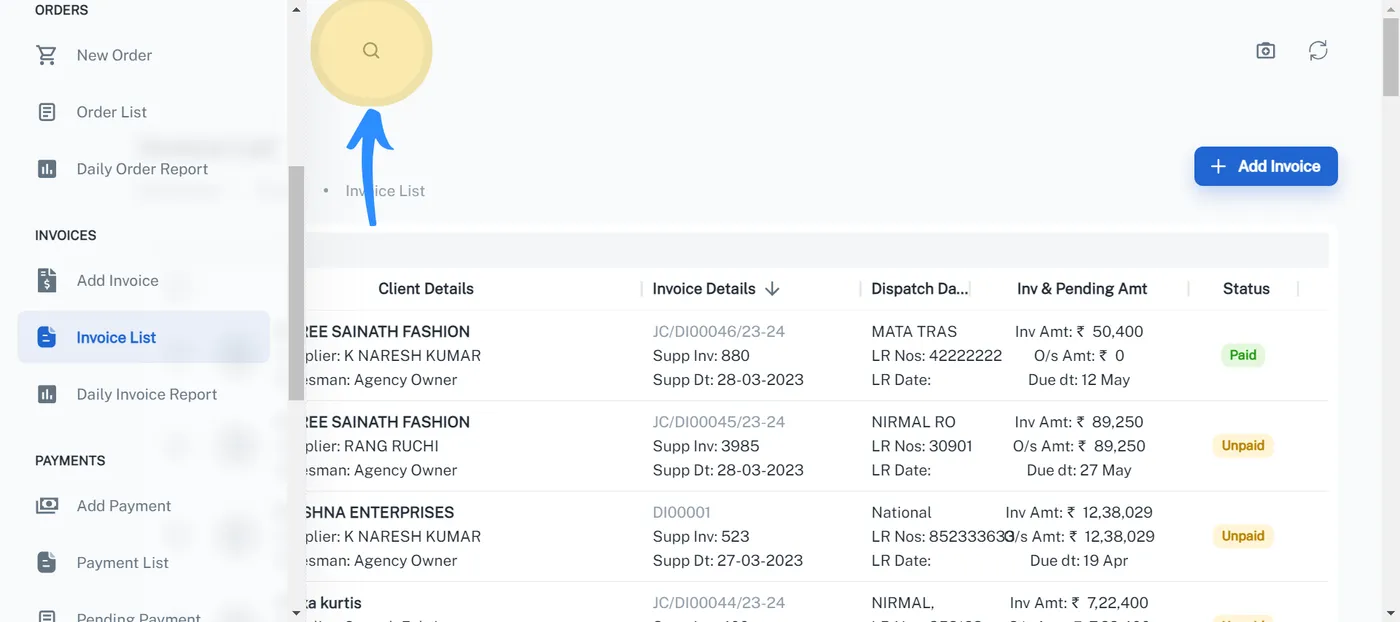
Step 2: open the search bar
Click the search button, the magnifying glass at the top left of the screen. The search bar opens above the list.
Step 3: type your query
Type what you know. The list narrows to the invoices that match, and the search bar has a Close button to leave search.
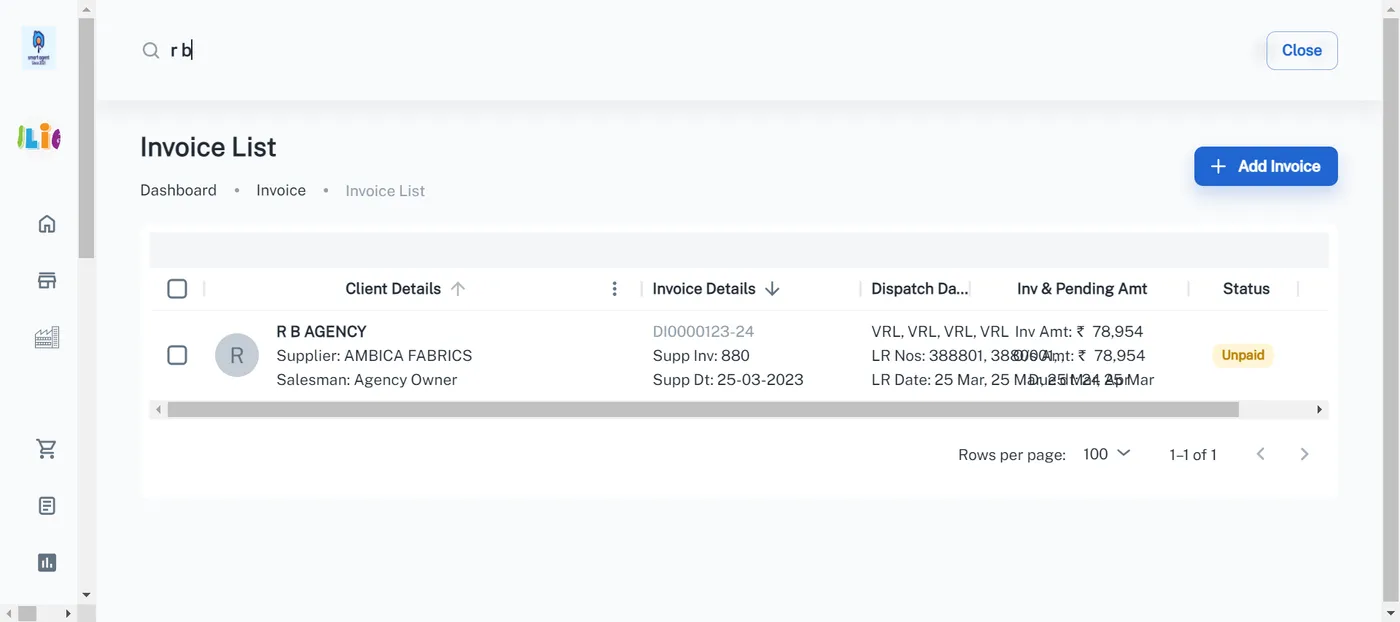
You can search with any of these four details.
| Search by | What you type | Example in this guide |
|---|---|---|
| Buyer name | Part of the buyer’s name | abc |
| Supplier name | Part of the supplier’s name | Naresh |
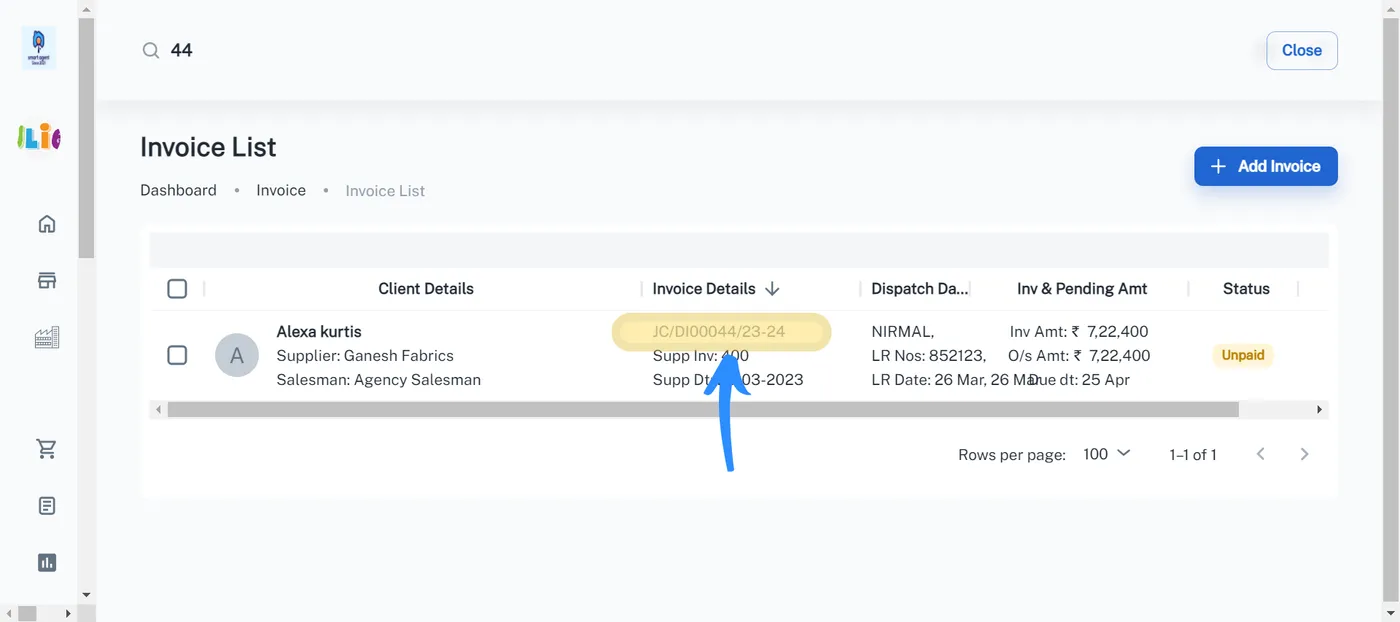
| Voucher or serial number | The number Smart Agent gave the invoice | 44 |
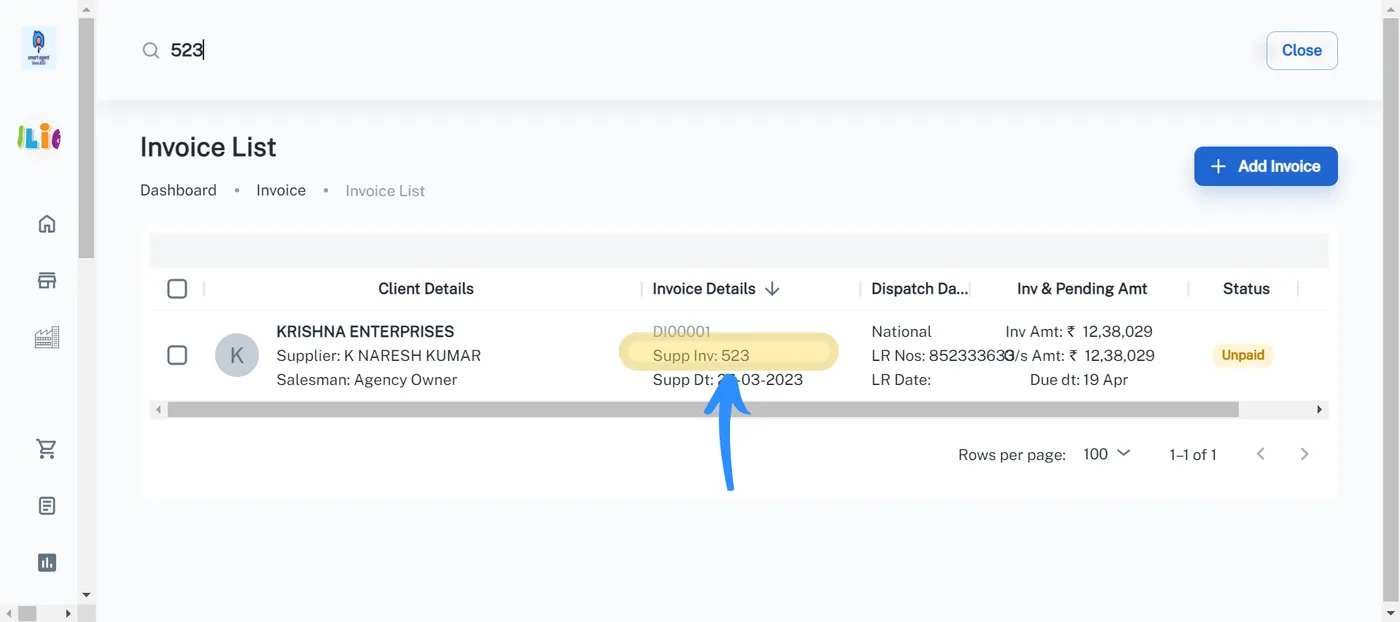
| Supplier invoice number | The number on the supplier’s invoice | 523 |
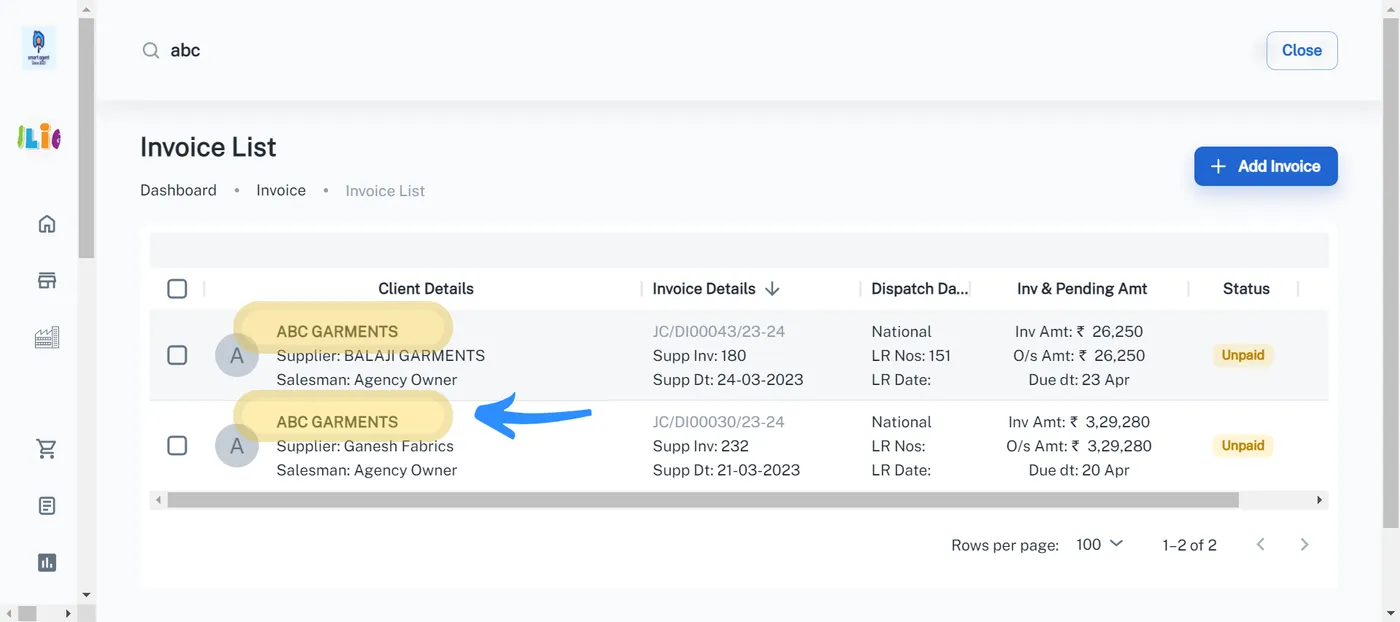
How do you search by buyer name?
Type part of the buyer’s name. In the guide’s example, typing “abc” returned the two invoices for the buyer ABC GARMENTS, each with its supplier, voucher number, amounts and Unpaid status.
How do you search by supplier name?
Type part of the supplier’s name. Smart Agent lists the invoices received from that supplier. The guide’s example searched the supplier name “Naresh”.
How do you search by voucher or serial number?
Type the voucher number or its serial part. Typing “44” returned the invoice with voucher number JC/DI00044/23-24.
How do you search by supplier invoice number?
Type the number printed on the supplier’s invoice. Typing “523” returned the invoice whose Supp Inv. is 523.
The same supplier invoice number is what Smart Agent checks for repeats when you enter a new invoice. See the guide to the duplicate invoice alert.
Where do you go next?
To look up vouchers other than invoices, such as orders and payments, use the specific voucher search. To sort and filter the list itself, see group, sort, filter, hide and pin columns. Before any of this, install the Smart Agent app on your phone or computer.
Questions this raises
Which fields can I search in the Smart Agent Invoice List?
Four: buyer name, supplier name, voucher or serial number, and supplier invoice number. You can type into the search bar without choosing a field first.
Where is the search button in the Invoice List?
At the top left of the screen, the magnifying glass icon. Clicking it opens the search bar.
What is the difference between the voucher number and the supplier invoice number?
The voucher or serial number is the number Smart Agent assigns to the invoice, for example JC/DI00044/23-24. The supplier invoice number is the number printed on the supplier's invoice.