
Search a specific voucher in Smart Agent
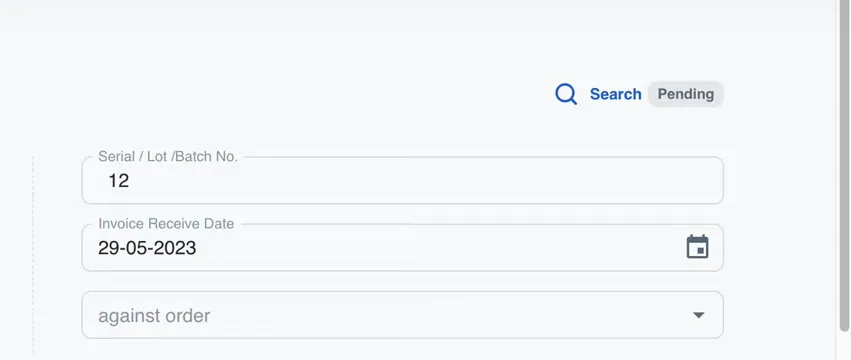
Click Search at the top right of the Add Invoice page to open the voucher search. Choose Order, Invoice or Payment, then filter by customer, supplier, serial number and a from and to date, and click Search.
What is the specific voucher search?
An agency creates many vouchers each day, and finding an old one for reference costs time. The specific voucher search is a dialog that finds any voucher by its details. You can look for orders, invoices or payments, and narrow the result by customer, by supplier, by serial number or by date.
How do you open the voucher search?
While you work, click the Search button at the top right of the screen. A pop-up opens. In the screenshot the button sits on the Add Invoice page, next to the Pending tag.
Which vouchers can you search?
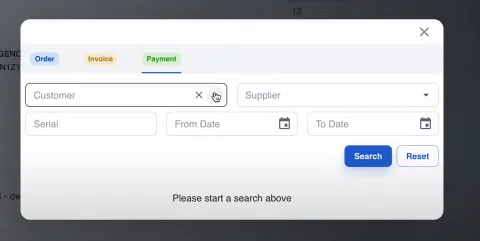
The pop-up has three tabs, one for each group of vouchers:
- Order voucher
- Invoice voucher
- Payment voucher
Which details can you filter by?
After you choose the group, filter by any of these details:
- Customer name
- Supplier name
- Serial number
- From Date and To Date
Click Search to run the filters. Until you do, the pop-up reads “Please start a search above”. Reset clears the filters so you can start again.
Is there a video of the search?
Yes. Watch the specific voucher search video on YouTube for a run through with examples.
Where do you go next?
To find an invoice from the Invoice List instead, use the search bar described in the guide to find an invoice by buyer, supplier or number. To tidy a long list, group, sort and filter its columns. The Smart Agent features page lists the rest of the app, and if you want it for your agency, talk to the Smart Agent team.
Questions this raises
Which kinds of voucher can I search in Smart Agent?
Three: Order, Invoice and Payment. They are the tabs at the top of the search dialog.
Which filters does the voucher search have?
Customer, Supplier, Serial, From Date and To Date. Use Search to run the filters and Reset to clear them.
Where is the voucher search button?
At the top right of the screen, as a Search button next to the Pending tag. The screenshot in this guide shows it on the Add Invoice page.