
Catch a duplicate supplier invoice number before you save
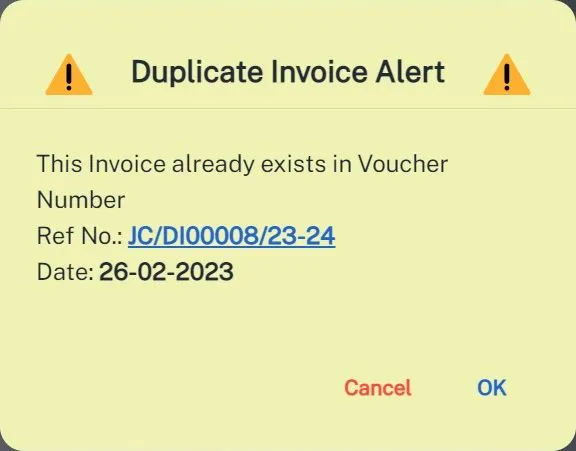
When you type a supplier invoice number that already exists in your invoice list, Smart Agent opens a Duplicate Invoice Alert with the voucher number and date of the earlier invoice. Click the blue Ref No. to edit that invoice, or cancel the alert to keep your entry.
What is the duplicate invoice alert?
Entering the same purchase twice is easy when many invoices come in each day. Smart Agent checks the supplier invoice number you type against the invoices already in your list. If the number is taken, it opens a Duplicate Invoice Alert instead of letting the second entry go through unnoticed.
The alert gives the voucher number of the earlier invoice (shown as Ref No.) and its date, so you can tell at a glance whether it is the same invoice.
How do you trigger the check?
-
Start a new invoice and choose the supplier from the Select Supplier list. You can type to search, or add a new supplier with the New button.
-
Enter the Supplier Invoice Number in the invoice form. In the guide’s test, a number already used on an earlier invoice for the same supplier was entered.
-
Smart Agent searches your invoice list and, on a match, opens the alert.
What can you do with the alert?
- OK removes the number you entered, and you type a new one. Use this when you were entering a new invoice by mistake with an old number.
- Cancel closes the alert and keeps your number. Use this when the same number is correct for a new product.
- The blue Ref No. opens the earlier invoice on its edit page.
How do you edit the existing invoice?
Click the blue Ref No. in the alert. Smart Agent opens the earlier invoice for editing. Change the fields you need, such as the commission settings or the GST amount, and click Edit.
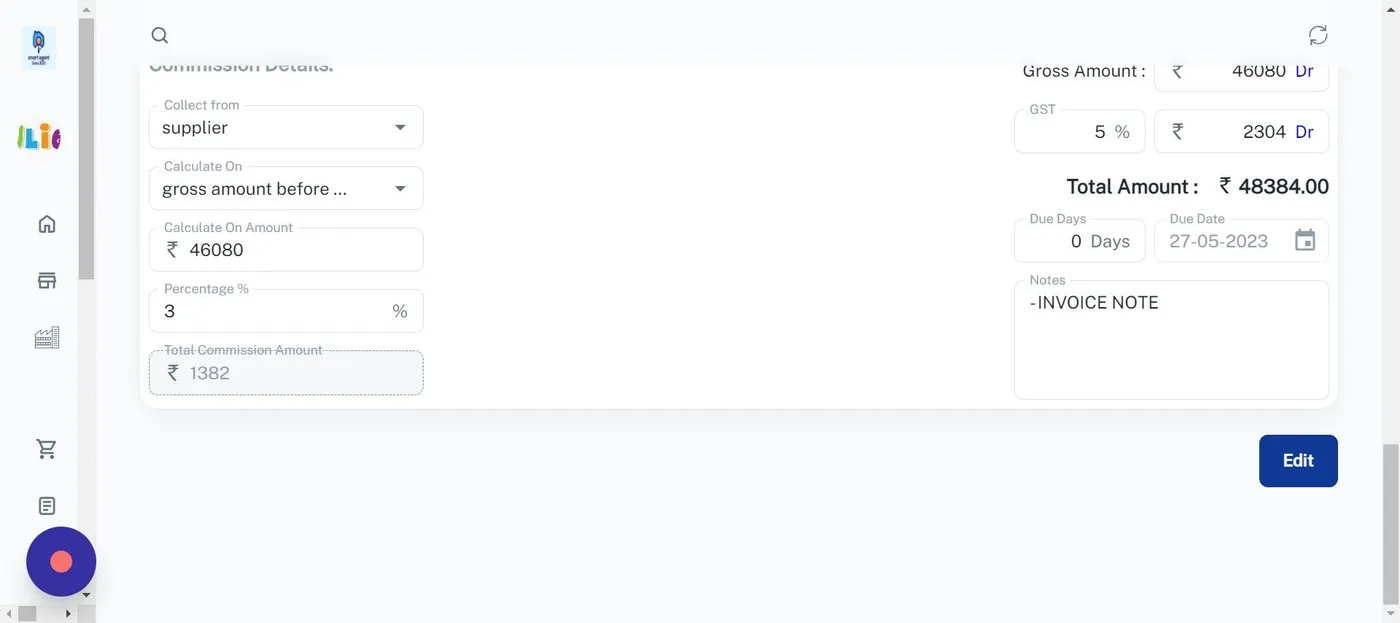
In the screenshot, the commission is set at 3 percent on 46,080, which gives a total commission amount of 1,382, and GST at 5 percent adds 2,304 to the invoice total.
What happens after you click Edit?
Smart Agent generates the invoice with your changes and shows the PDF. A notice, “New Invoice entry in 10 second”, appears at the top for 10 seconds. After it closes, use the download button to save the invoice, or hover over the notice to keep it open.

No second invoice with the same number is created, because you edited the first one.
Where else does Smart Agent check for duplicates?
Buyers get the same protection by GST or PAN number, covered in the guide to the duplicate client alert. If you need to look up an invoice you already saved, use find an invoice by buyer, supplier or number. The Smart Agent features page lists the rest of the invoice tools.
Questions this raises
What does Smart Agent compare to detect a duplicate invoice?
It compares the supplier invoice number you enter with the supplier invoice numbers already in your invoice list. A match opens the Duplicate Invoice Alert.
What do OK and Cancel do in the Duplicate Invoice Alert?
OK removes the number you entered so you can type a new one. Cancel closes the alert and keeps your number, for the case where you want the same number on a new product.
How long does the new invoice notice stay on screen?
The notice "New Invoice entry in 10 second" shows for 10 seconds. Download the invoice with the download button before it closes, or hover over the notice to pause it.