
Catch duplicate buyers by GST or PAN number
Smart Agent checks the GST number you enter for a new buyer against your buyer list. If it is already used, a Duplicate Client Alert names the existing buyer, and one click opens that buyer to edit. With no GST number, it checks the PAN number.
What does the duplicate client alert do?
When you add a buyer, Smart Agent compares the GST number you type with the GST numbers of the buyers already in your account. If one matches, a Duplicate Client Alert opens and shows the name of the buyer who already uses that number. You can then edit that buyer instead of adding a second record for the same business.
How do you add a buyer and trigger the check?
- Open Buyers List from the dashboard (Dashboard, Clients, Buyers List) and click Add Buyer.

- On the Add Buyer form, enter the Buyer Company Name, then the GST Number and, if you have it, the PAN Number.
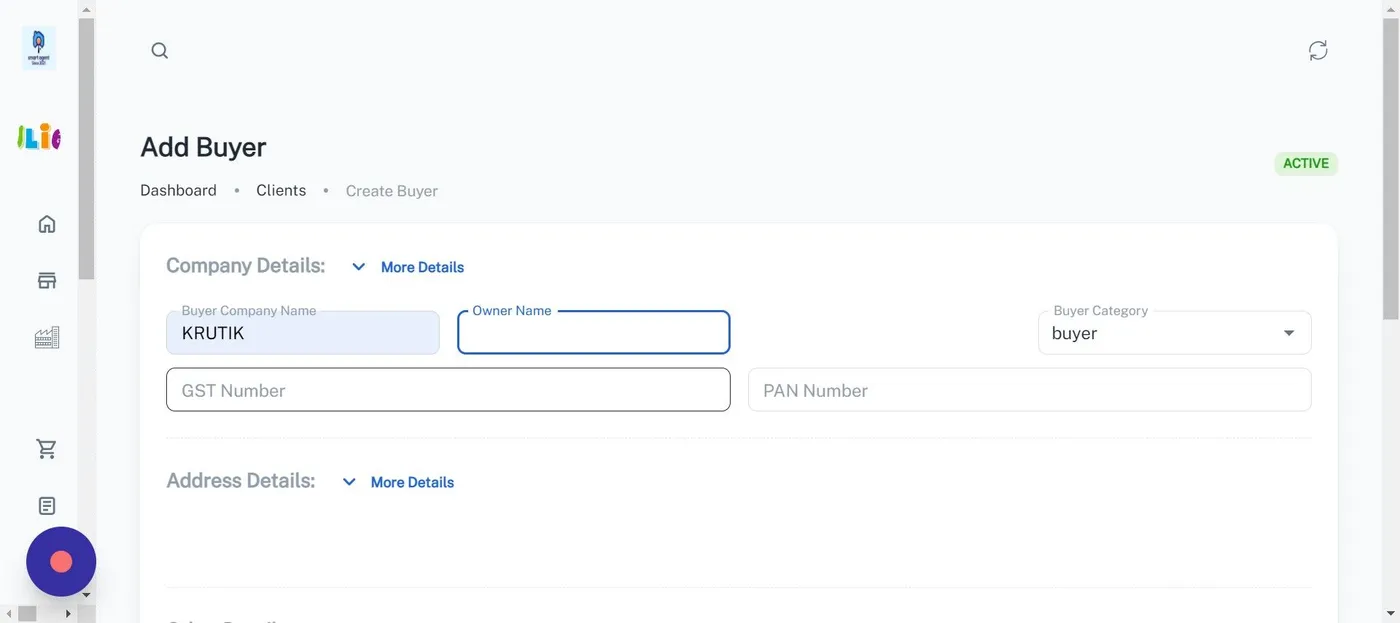
- In the guide’s test, a new buyer named KRUTIK was given a GST number that another buyer already used. Smart Agent searched the buyer list and opened the alert.
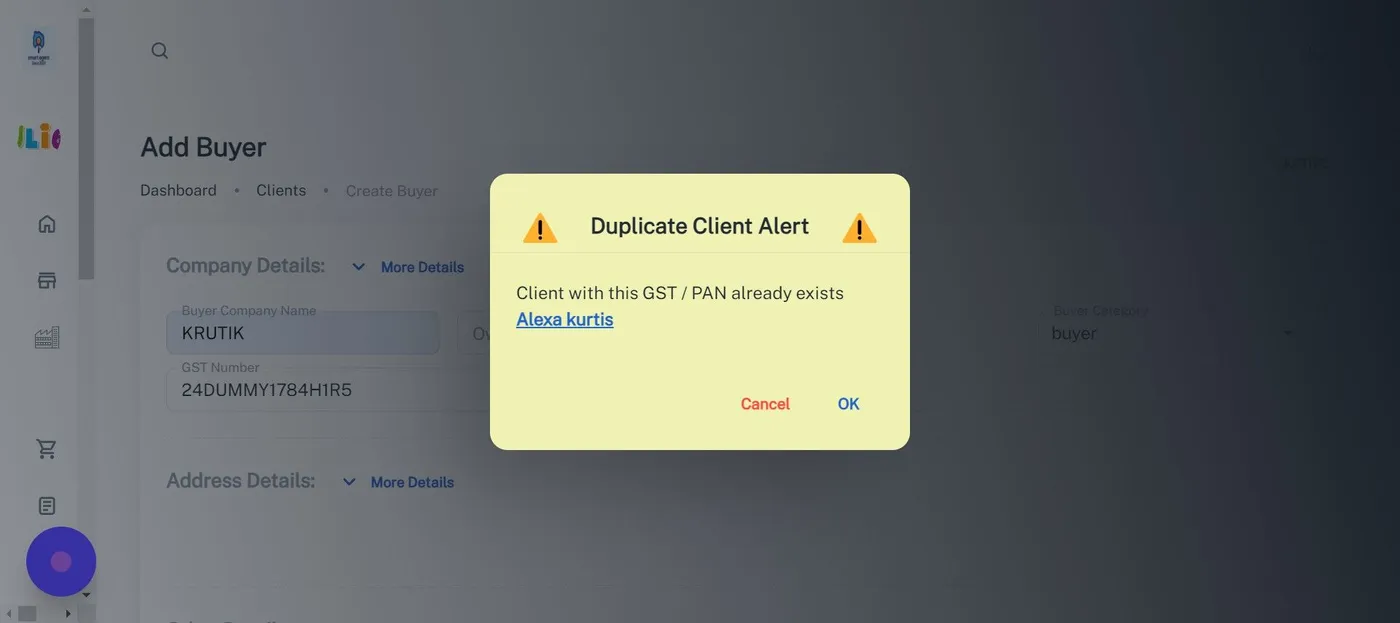
What happens when you click the buyer’s name?
The name in the alert is a link. Clicking it opens the Edit Buyer page of the existing buyer, with the GST number already filled in. You can change that buyer’s details there without creating a duplicate.
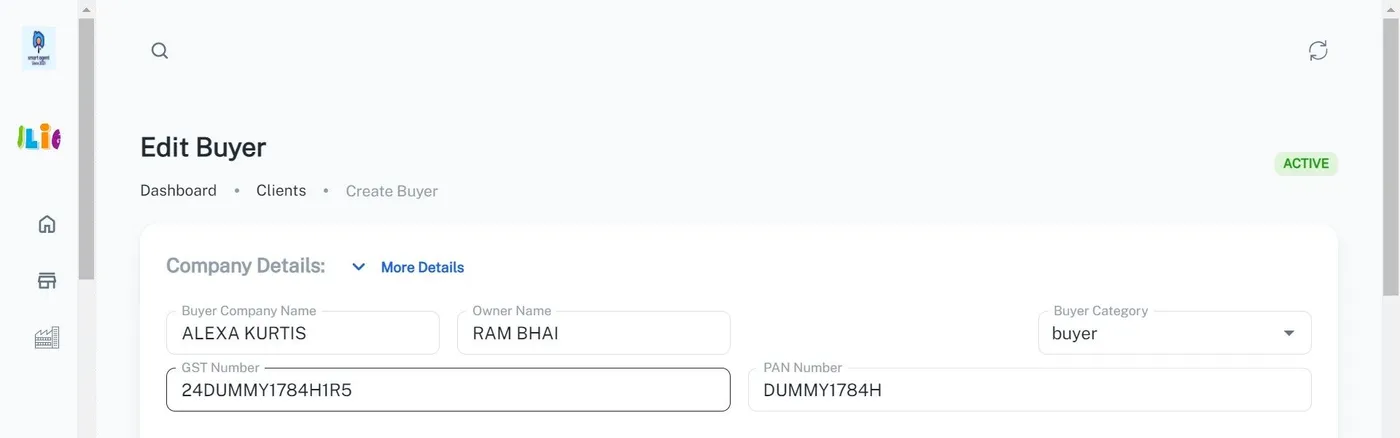
The three choices in the alert:
| Choice | Result |
|---|---|
| Click the buyer’s name | Opens that buyer on the Edit Buyer page |
| OK | Continues the entry with the duplicate number |
| Cancel | Removes the duplicate value from the field |
What if the GST number is empty?
If you do not enter a GST number, Smart Agent checks the PAN number the same way. A PAN number that already belongs to a buyer opens the same alert, and the same name link takes you to that buyer.
Where does the same check apply to invoices?
Invoices have their own version of this check, based on the supplier invoice number. The guide on the duplicate invoice alert shows it step by step. For the full list of what the app covers, see the Smart Agent features page, and if you want the app set up for your agency, talk to the Smart Agent team.
Questions this raises
Does Smart Agent check the PAN number as well as the GST number?
Yes. If you leave the GST number empty, Smart Agent checks the PAN number against your existing buyers. The alert reads "Client with this GST / PAN already exists" and names the buyer.
Can I still save a buyer whose GST number is already in the list?
Yes. Choosing OK in the alert continues the entry with the duplicate number. Choosing Cancel clears the duplicate field so you can enter a different number.
What does clicking the buyer's name in the alert do?
It opens the Edit Buyer page of the existing buyer that holds the GST number, so you update that record instead of creating a second one.