
What New Features?
Here we got some new features in Smart Agent Software, This feature is implemented in all listing tabs.
- Grouping for grouping the data to see the structure of the same type of data
- Sorting for sorting the group or whole the data in any manner and in naming also
- The filter is for filtering the data by keywords or we can filter by mathematical terms
- Hide and Pin is for Hide the column if not needed and pin for frequently used column
what is Smart Agent?
Smart Agent is an application to provide a base for agents to connect buyers and suppliers. In this app, you can manage your bills and supplier and buyer list and work daily collections. In the Smart Agent app, you can Generate invoices by just filling in the details and saving time. You can check other features on Smart Agents’ website – https://online.smartagent.one/
To know about new features…
Open the Invoice List to use the new features
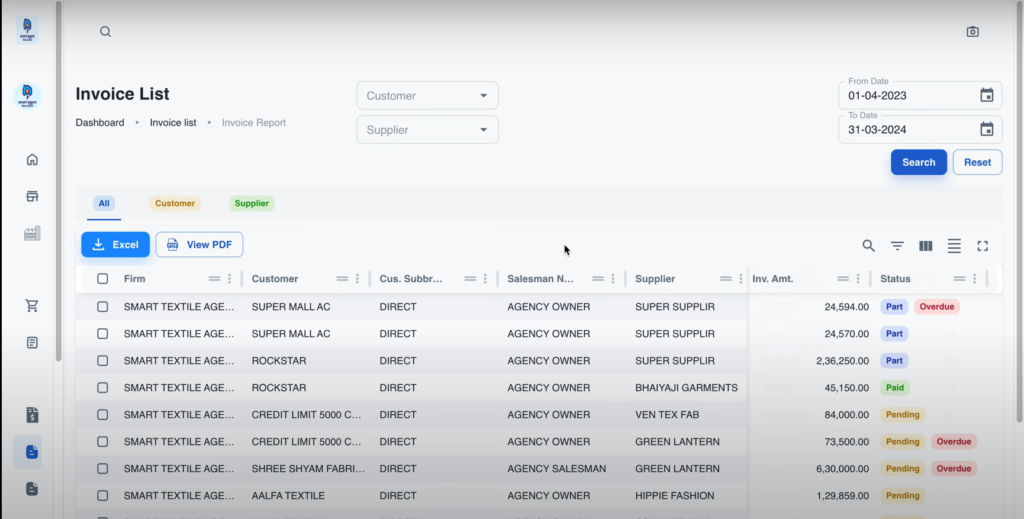
First start, with Smart Agent Software, then go to the Invoice List section. Now You can see your data as usual there and you can study it manually.
But if you have any little info to filter out you can apply it here
1) How to use the new feature to group the data?
We have to analyze any data with grouping to find how many customers we are interacting with, for this, we have to group all the data customer-wise. You can use this feature as many times as you want, you can find a group of suppliers’ details from a group of customers. As you can do internal grouping as many times as you need. It will respond to your required query and then you can do your work easily.
Option 1: From Menu Button
Click on the Menu of column
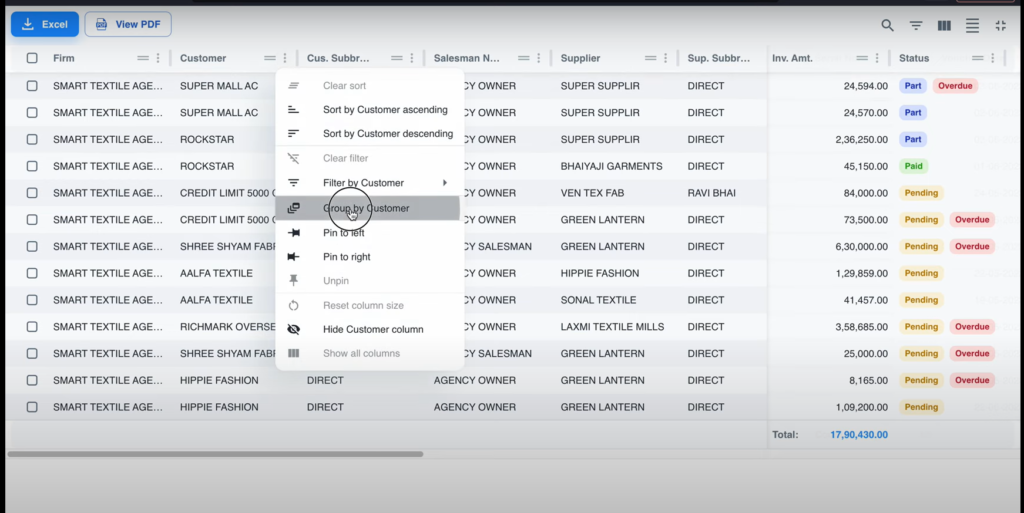
First Click on the three dots for the menu option of the column, here you have shown the options there.
Then Click on the 6th option called ” Group by Customer “. And it will give you the required result.
Option 2: Dragging the Column
Simply Hold and Drag
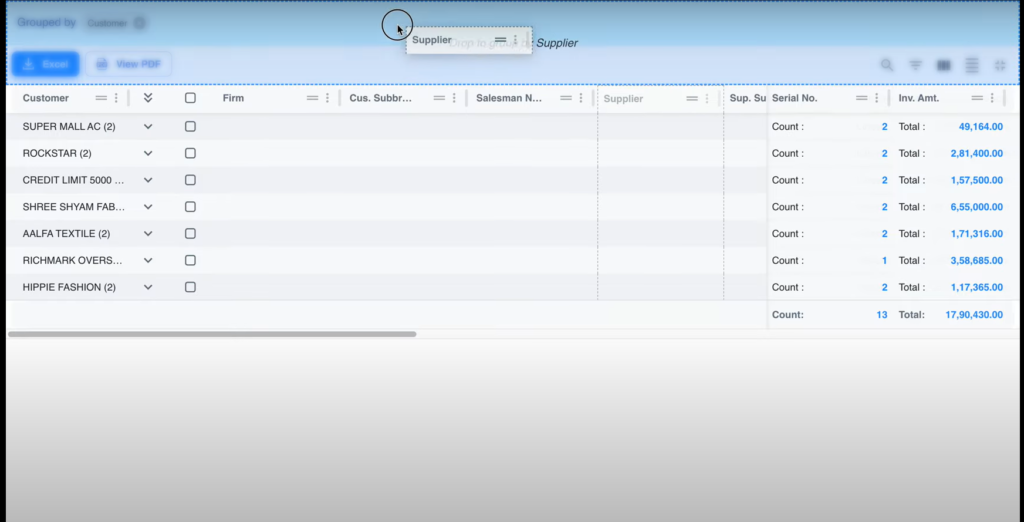
Here you have shown the grouped data as customer-wise and then we dragged the supplier column just by holding the column header and dragging it to the upper bar
You got the data grouped as a customer and then supplier-wise
This is how you can use the grouping feature in Smart Agent Software.
2) How to use the new features to Sort the data?
We are analyzing our data and we need to sort it out, as we know if we are working with bigger data there we have to maintain the flow of data otherwise we get trouble finding the data as it is not in a serial manner. So, Smart Agent gives you the solution we can sort the data by the numerical value as required but we can also sort by the character flow, so you can sort it by customer name also and yes it gives both the option ascending and descending order.
Click on the column Header
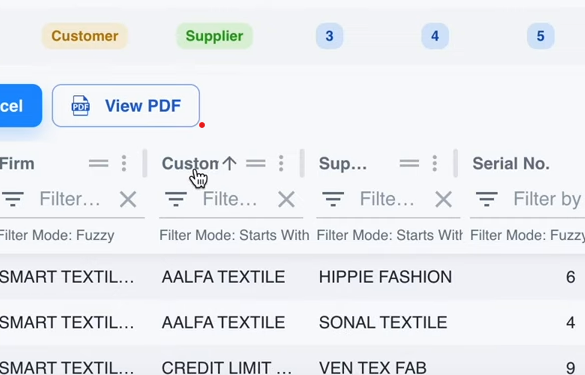
Click on the column which you have to sort, on the header you have shown arrows, it will define whether it is ascending or descending.
After Clicking on the header it will sort the data based on the clicked column’s sorted order, If you click one time it will sort it in ascending order and if you click it two times then it sorted it in descending order.
This is how you can sort the data in Smart Agent App
3) How to use the new features to Filter out the Data?
We want to search for some specific Vouchers and if we don’t know the proper properties of the voucher then above all the vouchers we can filter the required ones. How can figure out the filter it will show here, as you can just simply apply your filters in a few clicks.
Click on the filter button (three bars)
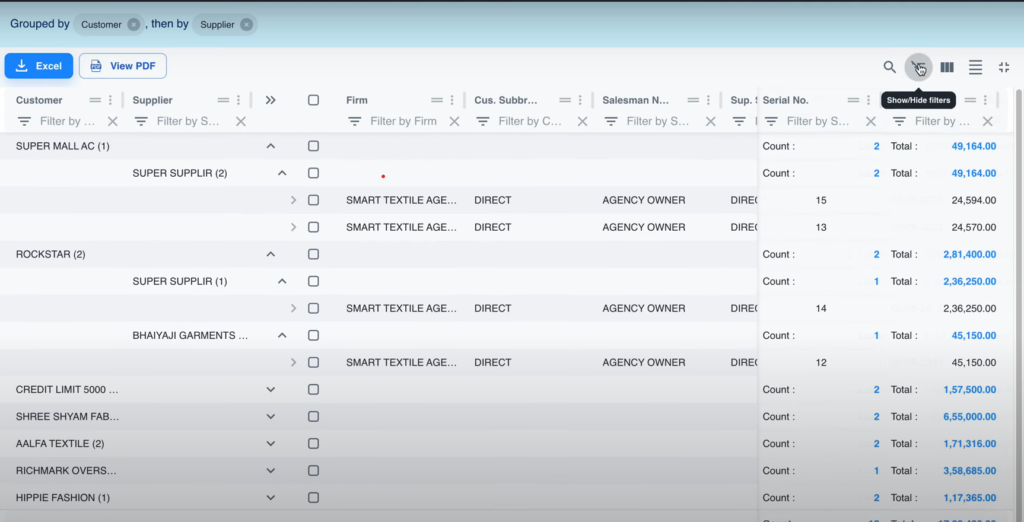
The 3 bars icon at the menu bar above all columns is a filter function.
You can just click on it and all the filters appear above the columns separately.
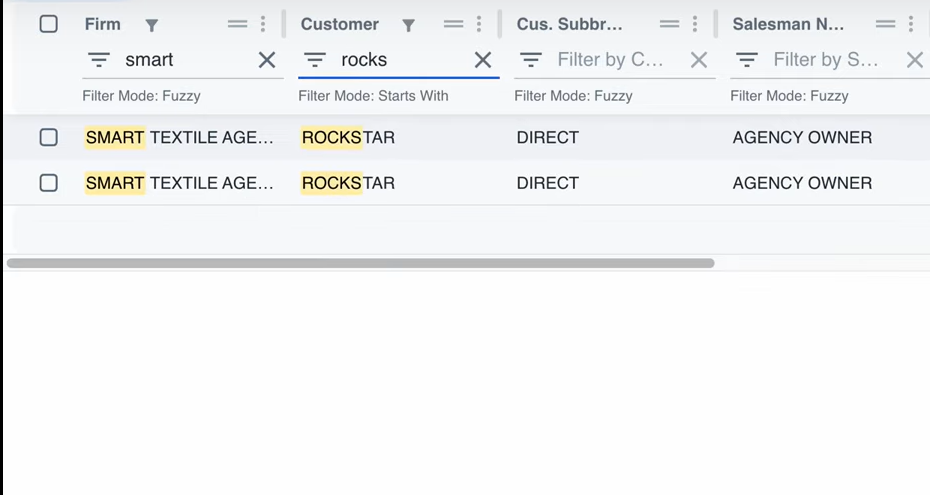
As you can see in the filters option above all the columns, you can write the filter based on the name and find all the suggestions there.
You can also filter out any number of times as you want as here after firm we apply the filter on the customer.
Modes in filter feature
You have a mode also to filter out as you can filter the numerical item on the function of greater than and less than. Now you can find all the vouchers as per your requirement like greater than 50000 amount of invoices and etc.
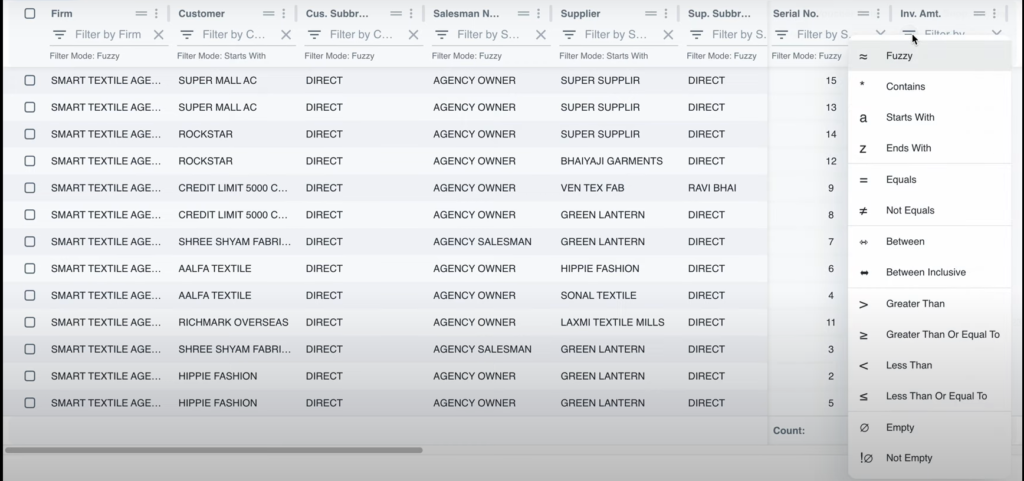
You can change the modes by just clicking the left side of the filter of the required column. And the menu options appear you can just select the modes from the second last section of the menu.
4) How to use the new feature to Hide and Pin the columns
If you are working on your data and you don’t need many columns on the screen, you can hide unwanted columns and work on the important data. And the second one is the Pinning the column feature it will pin the columns as you want right side or left side.
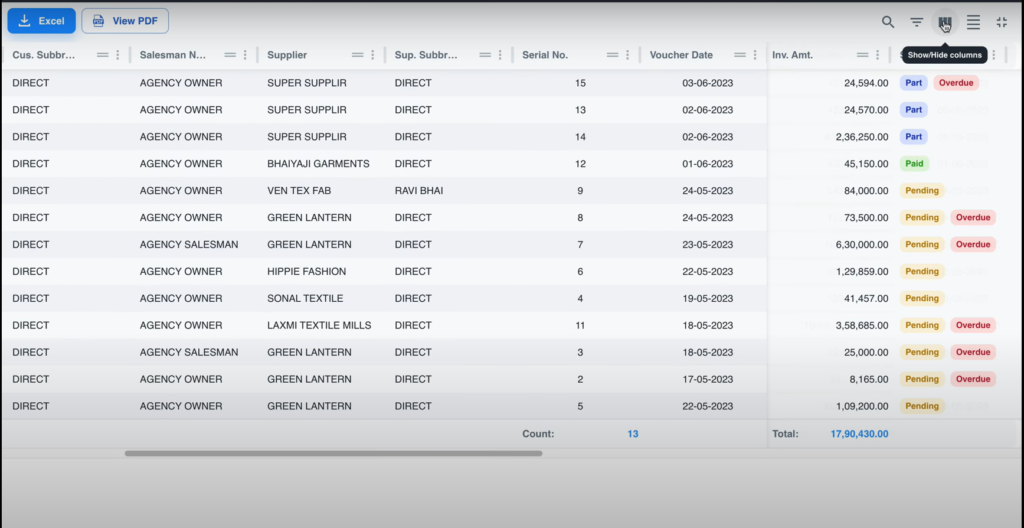
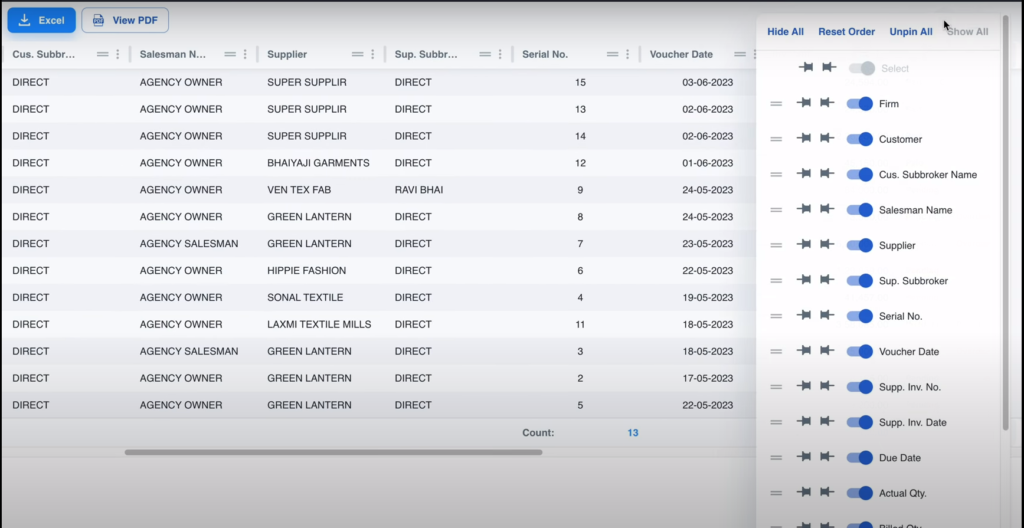
Hide Columns
To hide the unwanted columns, you have to open the hide & pin section where you can manage all these requirements. To open this section click the three vertical bold bars, and it will pop the section. Now you can control the column to hide or not.
From the toggle button given there, you can make the column hide or unhide. as you can manage the important data over the screen and faster your work.
Pin the important columns, so you can keep your eyes on them. You can pin the column by clicking the pin button before the toggle button is given to hide. The pin button will pin the column and you can also suggest if you want to pin it to the left or right. the left one will pin it to the left side of the table and the right one will make it stick to the right side
As this, you can hide and pin the columns and manage your important data easily.
To understand the new features – The complete Guide is here…
For the detailed video for the search feature Follow this Blog – https://smartagent.one/specific-voucher-search-smart-agent/
For installing Your Smart Agent Software Follow this Blog – https://smartagent.one/installation-smart-agent-software/